Welcome to Support Center
Find instant answers to your questions regarding property buying, selling, rentals, listings, and your account.
Property Management (8 questions)
1. Can you post property on envesttville.com for FREE? How many properties you can post for FREE?
Yes, envesttville.com offers 2 FREE listings to owners/sellers for posting properties in general. However, we are giving a special offer of 10 FREE listings to owners/sellers up to 1 Dec 2026.
2. How to post property for FREE on envesttville.com?
How it works:
Step 1: Click on “Post Property” button on homepage.
Step 2: Sign up on envesttville.com
Step 3: Go to “Dashboard” and choose appropriate option – Rent/Sell under “Listings”
Step 4: Click on “Add Listing” button, the form will appear to enter your property details.
Step 5: Post your property Ad for FREE by entering in depth property details and upload multiple good quality pictures.
Step 6: Click on “Save & Next” button at the bottom of the page.
Step 7: Start getting enquiries on user dashboard
3. Is RERA ID must for posting properties on envesttville.com?
Under the Real Estate (Regulation and Development) Act (RERA), a RERA ID is mandatory for all new and ongoing commercial and residential real estate projects where the total land area exceeds 500 square meters, or the total number of apartments/units is more than 8.
Projects That Must Have a RERA ID
- Residential Projects: Apartments, flats, row houses, villas, and plotted developments that cross the size or unit limits.
- Commercial Projects: Office spaces, retail shops, and commercial buildings exceeding 500 sq. meters or 8 units.
- Mixed-Use Projects: Any building or development combining both residential and commercial spaces that meets the area or unit threshold.
- Ongoing/Incomplete Projects: Projects that were incomplete when the RERA act came into force.
- Phased Developments: Each phase of a larger project is treated as an independent project and requires its own separate registration.
Properties Exempt From RERA
- Small projects with a land area under 500 square meters or 8 or fewer total units.
- Properties where renovation, repair, or re-development is done without any new allotment or sale of units.
- Projects that already received a completion certificate before the RERA rules became operational.
4. For how long a listed property will be visible on website?
FREE Listings are visible for a limited time period as given in trial pack. Your property will not appear in search results after that. To showcase your property in search results again, you would have to subscribe to our paid packages.
5. When will the property become visible on site?
Once the posting is done, the listed property appears immediately on the site.
6. How to Edit/Update property details?
Follow the steps below to update the PROPERTY details:
Step 1: ‘Login’ to your account.
Step 2: Go to 'Dashboard' and then to ‘Listings’
Step 3: You will find a card of your Property under Rent OR Sell – according to the previous listing done.
Step 4: Click on ‘Update’ button to make the new changes.
Step 5: Once all changes are made, click on ‘Update’ button at the bottom of the page.
7. How to deactivate/reactivate the listed property?
Follow the steps below:
Step 1: ‘Login’ to your account.
Step 2: Go to 'Dashboard' and then to ‘Listings’
Step 3: You will find a card of your Property under Rent OR Sell – according to the previous listing done.
Step 4: Click on ‘Update’ button to make the new changes.
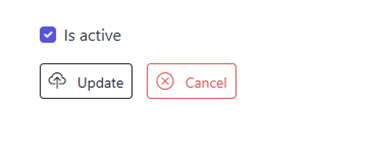
Step 5: Go to the option ‘Is active’ at the bottom of the page to deactivate/reactivate the listed property on the website. If the option is ticked as below, the property will appear on the website and if you remove the tick, the property will not appear on the website.
8. How to use the “Compare Properties” feature?
Follow the steps below:
Step 1: Just click on the “Add to compare” button appearing on the top of the property images.
Step 2: You can select maximum 3 properties at once to compare.
Step 3: Once selected, click on the ‘Compare Properties’ button at the top right corner of the website.
Step 4: New page will appear showing comparison of the selected properties.
Step 5: User can also hide the common features by clicking on ‘Hide Common Features’ button.